How To Submit Photos To AI
Step 1: Take The Fundus Photo
Take the fundus photo of the patient
Step 2: Log In And Add A New Patient
Visit www.sugarwaveai.com and log in to the SugarwaveAI platform.

Add a new patient

Step 3: Fill In Patient Details
Complete the form with the relevant patient information and click submit. (Name, Surname, South African ID number, etc)
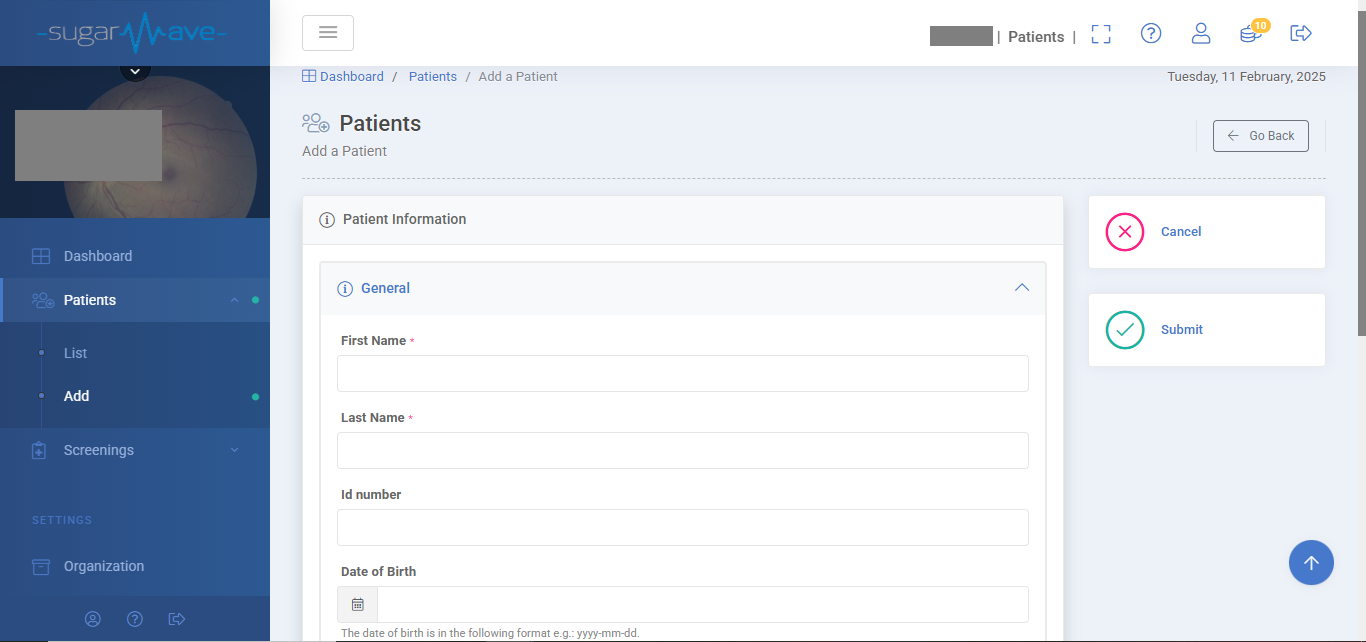
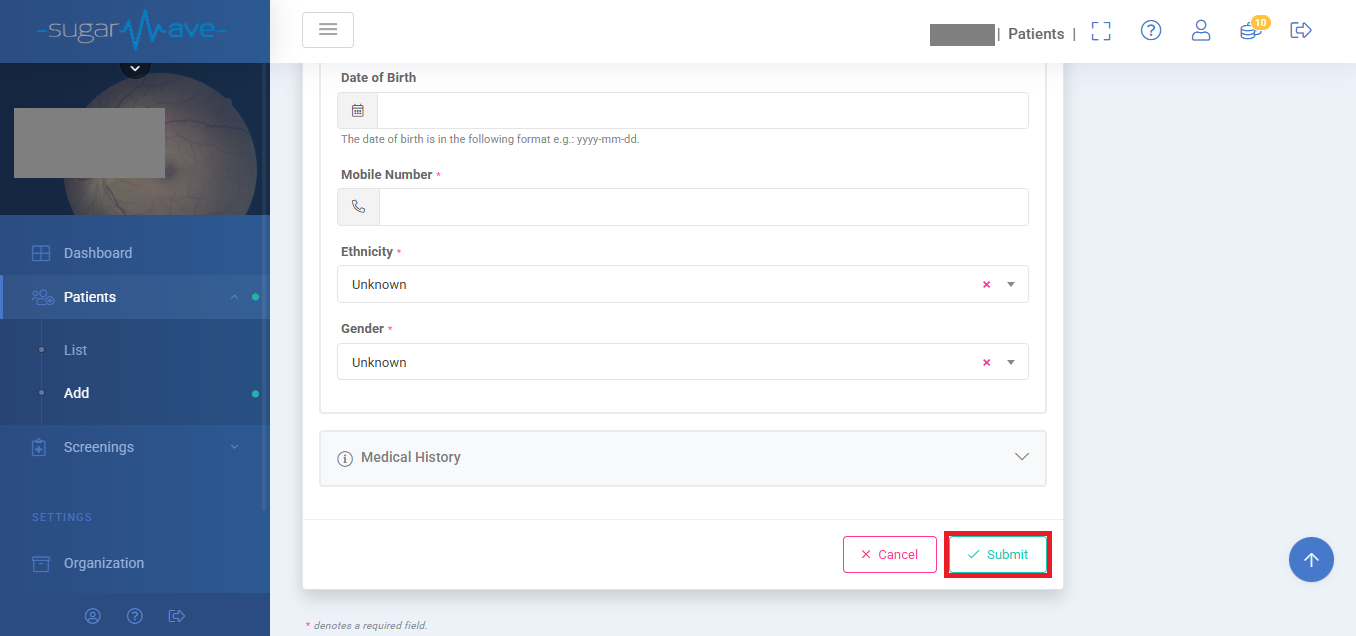
You can submit using either the submit button on the side panel or at the bottom of the form.
Step 4: Select "Add Screening."
After adding the patient, you can click the “Add a Screening” button to immediately open a new screening with the patient you have just added.

There are no compulsory fields when adding a new screening. It is however important to note that if you select a medical aid plan, it will be mandatory to fill out the medical aid number and dependant number.
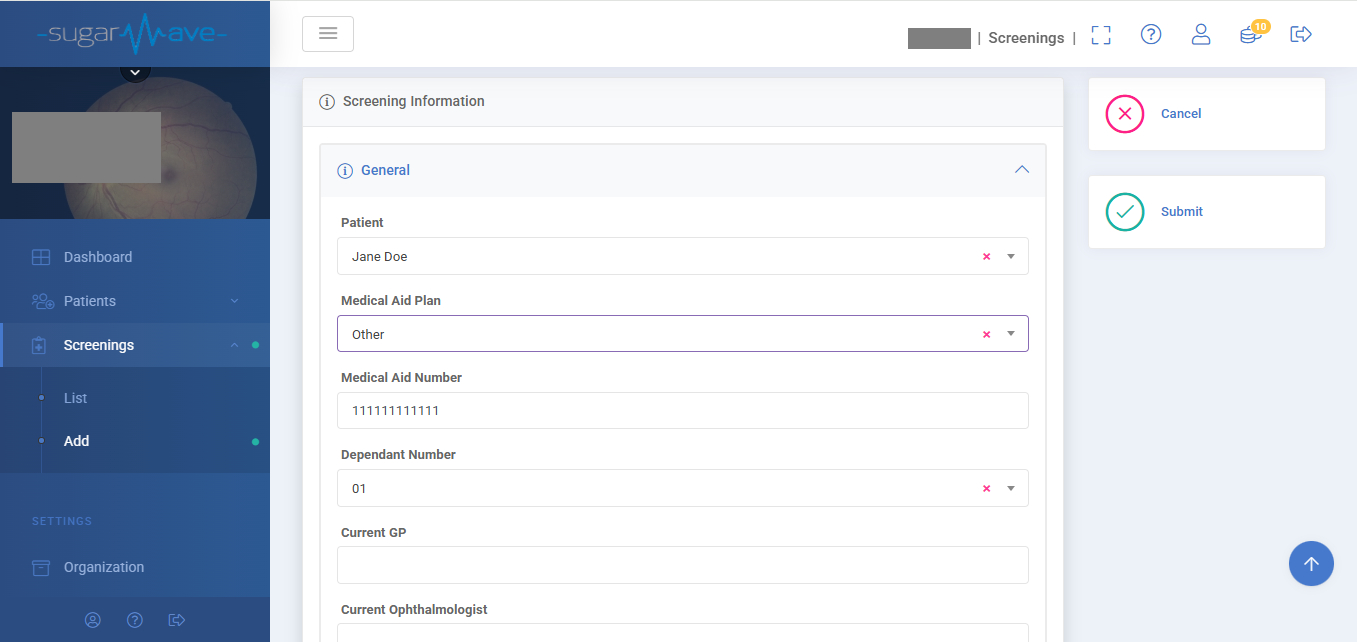
After completing all the patient information, check the “Terms and Conditions” box at the bottom of the form and submit.

Step 5: Upload Or Drag And Drop Images
After clicking “Submit,” the next screen will display a form where you can drag and drop or upload your fundus images. Placeholder images have been added as a guide to help users select and upload the correct images.


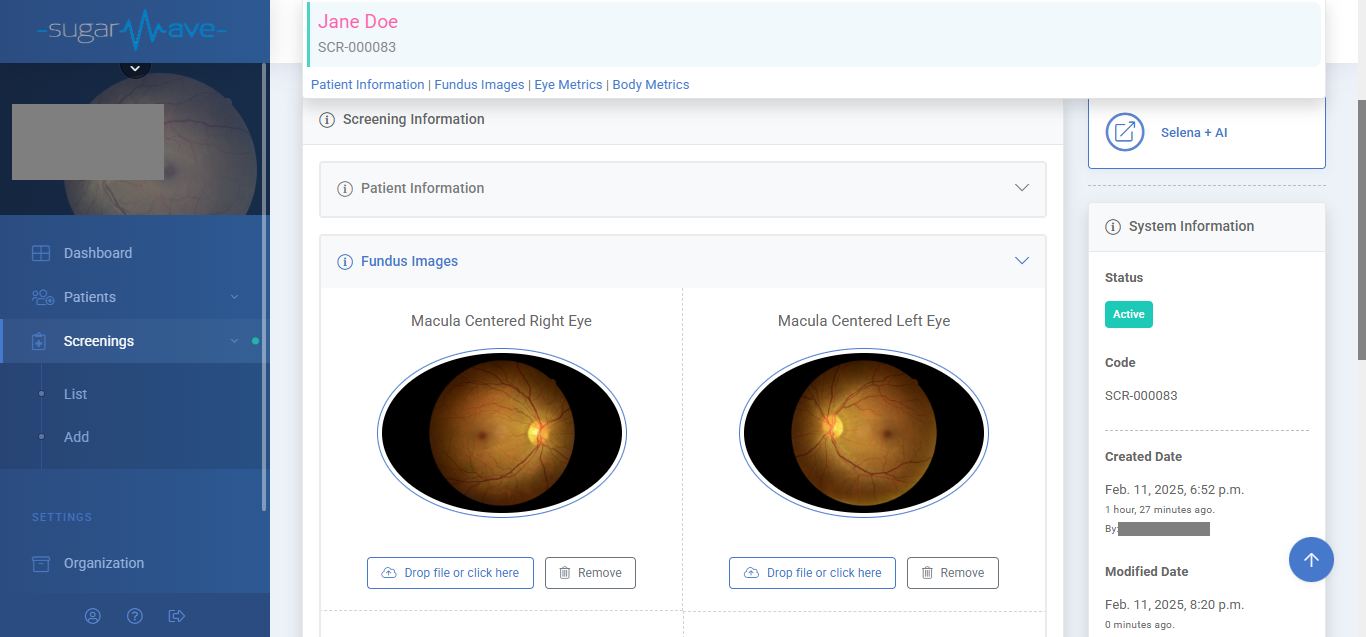
Step 6: Click "Selena + AI" Button
Clicking the “Selena + AI” button in the panel on the right will initiate image analysis. For the submission to qualify, it must include either:
- Two optic-centered images
- Two macula-centered images
- Both optic- and macula-centered images

The analysis takes about 30 seconds. Please wait.

Once it’s done, click the “Selena + AI” button again to view the results.
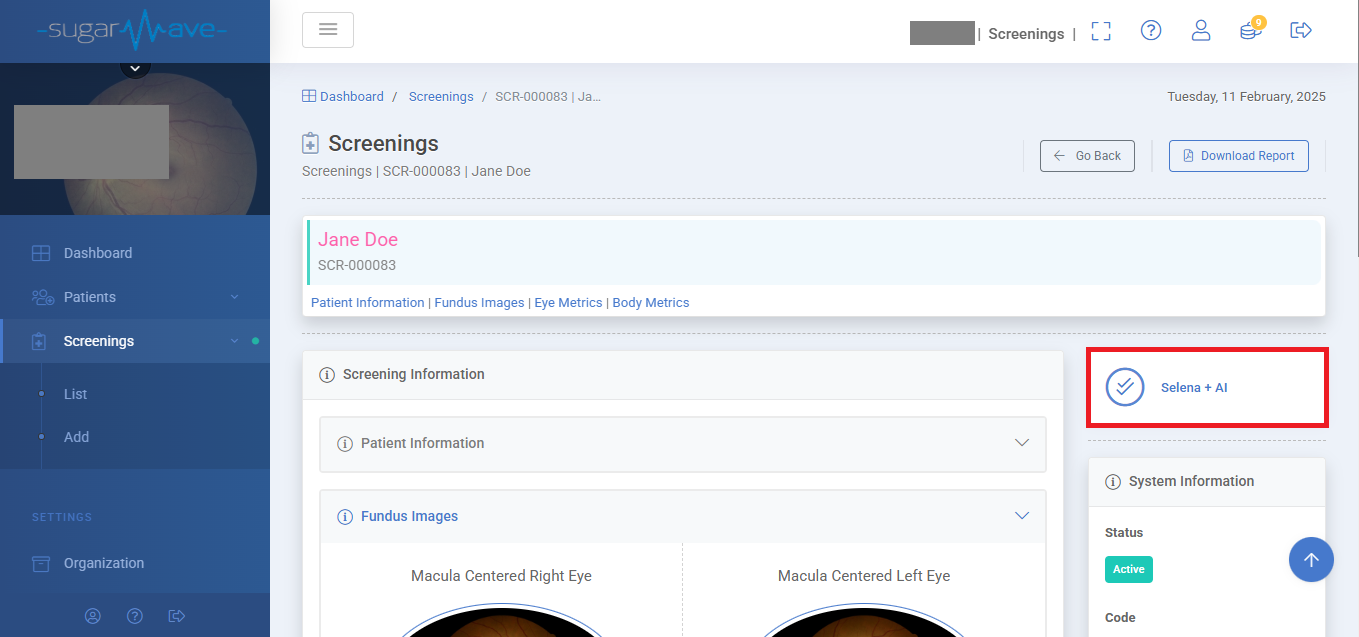
The results will fly in from the right for a quick glance.
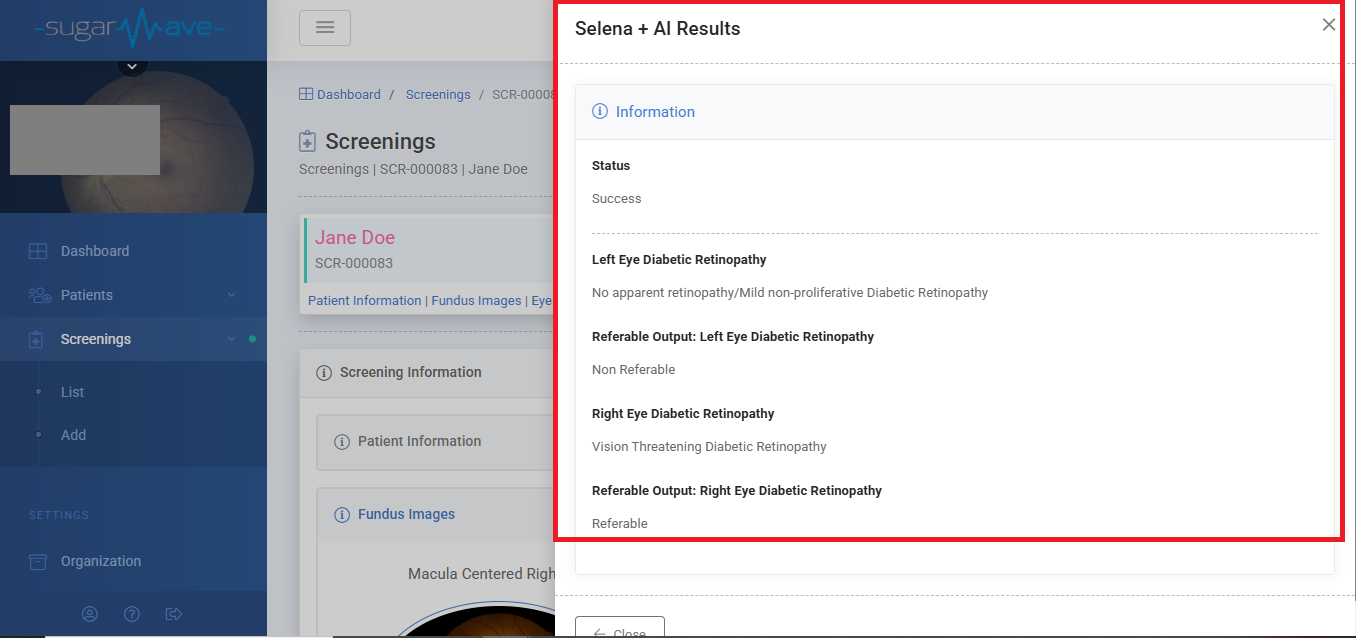
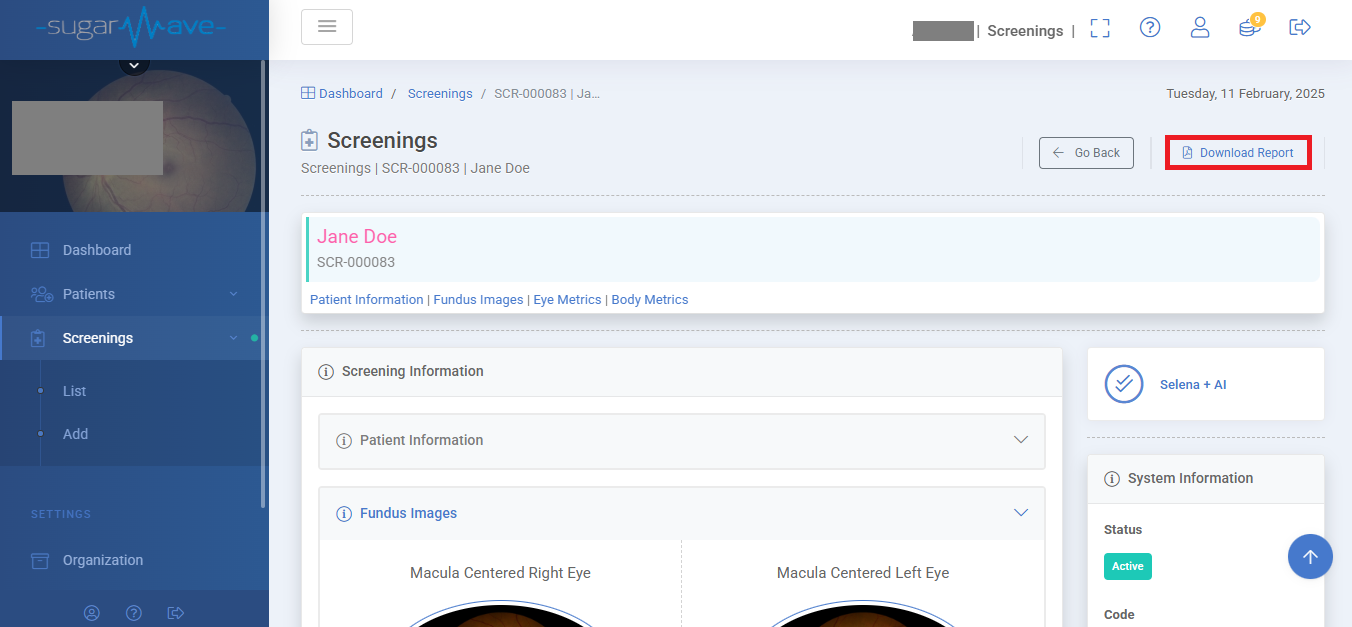
Step 7: Click the "Download Report" Button
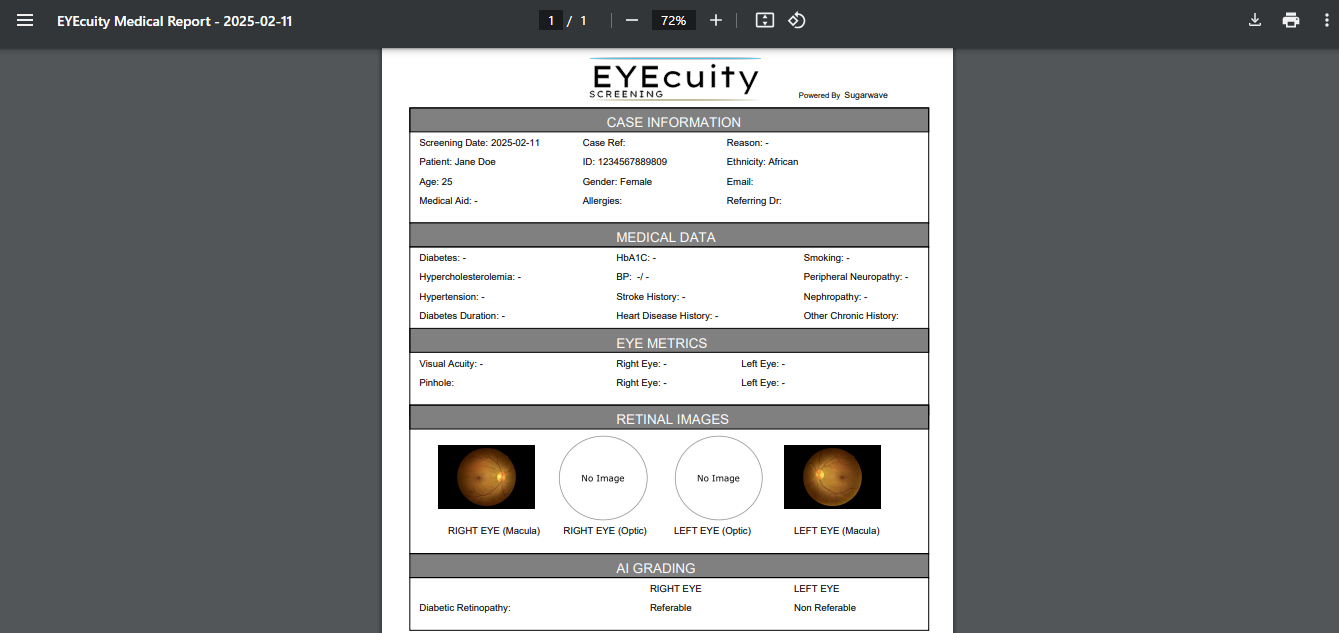
Click the “Download Report” button to save the report as a PDF on your computer for filing or printing.